
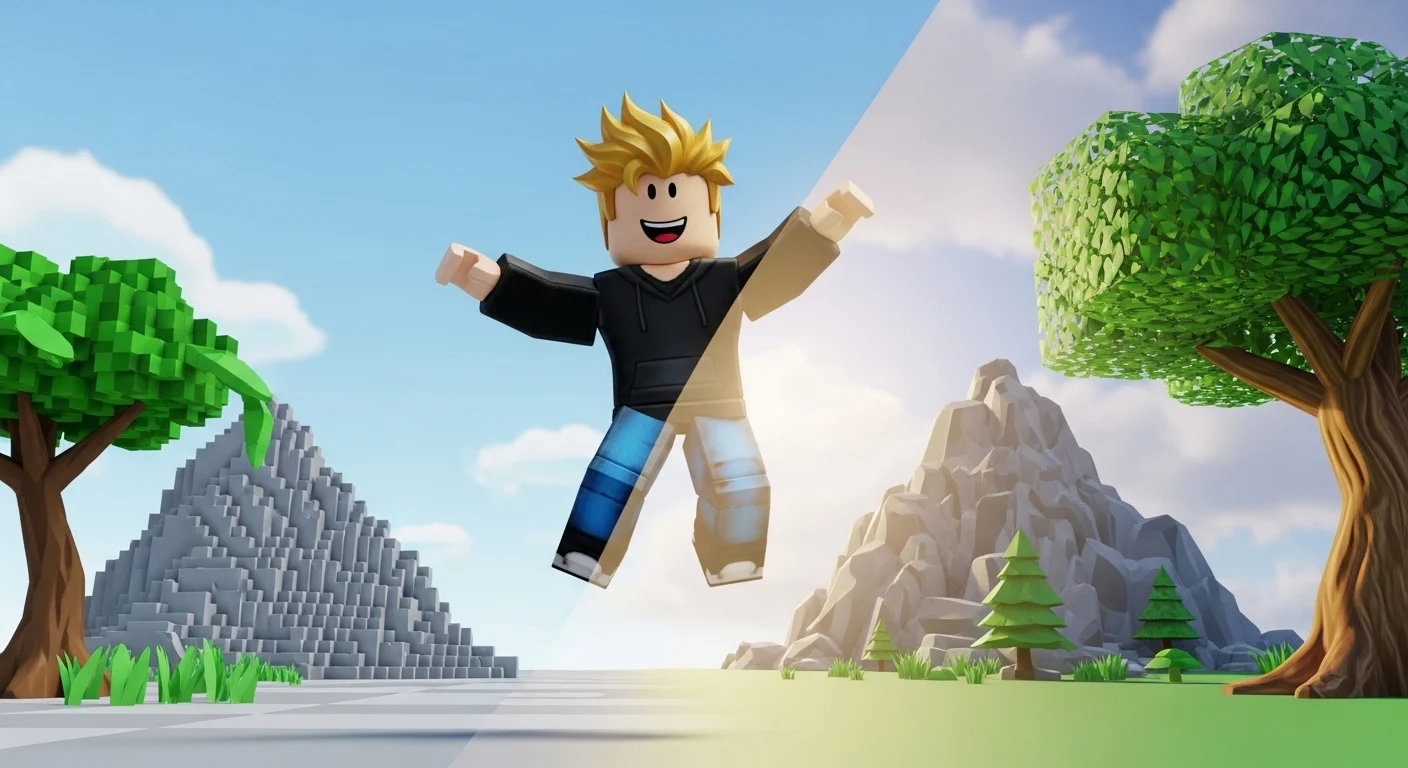

There is nothing worse than freezing in the middle of a Blade Ball clutch or crashing right as a Blox Fruits legendary spawns.
If you are playing on a “Potato PC”—like an old school laptop or a desktop with integrated graphics—Roblox in January 2026 is demanding. With the new “Future” lighting and 4K textures developers are adding, your FPS is suffering.
But you don’t need a $2,000 PC to play smoothly. You just need to optimize. Here is the ultimate guide to squeezing 60+ FPS out of a toaster.
🔧 1. The “Bloxstrap” Method (The 2026 Standard)
If you are still launching Roblox from the website or the default app, you are doing it wrong. In 2026, serious players use Bloxstrap. It’s an open-source bootstrapper that lets you edit “FastFlags” (hidden developer settings) to remove lag.
- Download Bloxstrap: Get it from the official GitHub (it is safe and does not trigger Hyperion anti-cheat).
- Open the Menu: Before launching Roblox, open Bloxstrap.
- The “FastFlags” Section: This is where the magic happens.
- Framerate Limit: Set this to 0 (Unlimited) or match your monitor (e.g., 60 or 144).
- Rendering Mode: Force D3D11 (DirectX 11). It is usually more stable than D3D12 on older PCs.
- Lighting Technology: Force “Voxel” or “ShadowMap”.
- Why: This disables the heavy “Future” lighting used in high-end games. Your game won’t look as realistic, but your FPS will double.
- Texture Quality: You can force low-resolution textures here to save VRAM.
🎮 2. Best In-Game Settings
Once you are in the game, press Esc and go to Settings.
- Graphics Mode: Change from Automatic to Manual.
- Never trust “Automatic.” It fluctuates constantly, causing stuttering.
- Graphics Quality:
- Level 1-3: This removes shadows and simplifies geometry. This is mandatory for PvP games (Da Hood, Arsenal).
- Level 8-10: Increases render distance. Only use this if you need to see far away (like finding islands in GPO).
- Reduce Motion: Turn this ON. It removes the blur effect when you turn your camera, which saves a tiny bit of processing power and helps with motion sickness.
💻 3. Windows Optimization (The “Backstage” Tweaks)
Your PC might be throttling Roblox to save power. Stop it.
- Game Mode: Press Windows Key -> Type “Game Mode” -> Turn it ON. This tells Windows to prioritize Roblox over background apps.
- Graphics Performance:
- Type “Graphics Settings” in Windows Search.
- Click Browse -> Find
RobloxPlayerBeta.exe(usually in AppData/Local/Roblox/Versions). - Click Options -> Select “High Performance”.
- Why: This forces your laptop to use its dedicated GPU (if you have one) instead of the weak Intel integrated chip.
- Disable “Fullscreen Optimizations”:
- Right-click the Roblox icon -> Properties -> Compatibility.
- Check the box “Disable fullscreen optimizations”. This reduces input lag.
🗑️ 4. Material Disabler (For the Desperate)
If you are truly on a potato (2GB RAM, no GPU), you can remove textures entirely.
- How: Go to your Roblox folder ->
PlatformContent->pc->textures. - Action: Delete (or move) the folders like
studs,sky, etc. - Result: The game will look like “Plastic” (smooth surfaces with no detail).
- Performance: This drastically reduces RAM usage. It looks ugly, but hey, 60 FPS is 60 FPS.
⚡ 5. Connection vs. FPS (Know the Difference)
Sometimes you aren’t lagging; you are “rubberbanding.”
- Low FPS: The screen looks like a slideshow. (Fix: See above).
- High Ping: Characters walk in place or teleport.
- Fix: Use an Ethernet cable. Wi-Fi is terrible for Roblox.
- Region: In some games (like Bedwars or Deepwoken), check the server region. If you are in the US but join a Singapore server, no amount of graphics settings will fix the delay.
💡 Verdict
Close Google Chrome. Seriously. Chrome eats your RAM. If you have 8GB of RAM or less, you cannot have Discord, Spotify, and 10 Chrome tabs open while playing Anime Vanguards. Close everything else. Let Roblox eat.