
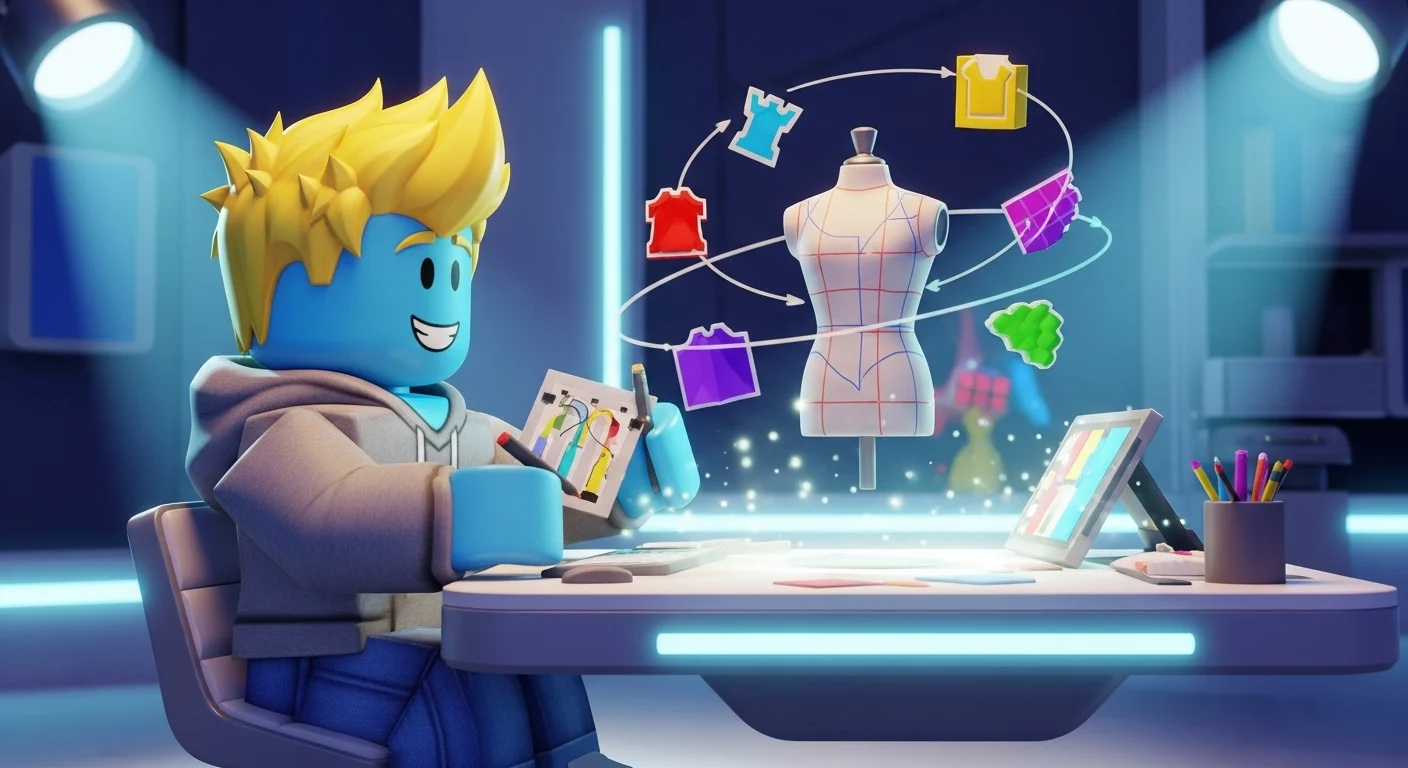

You’ve looked through the Catalog (Avatar Shop), and everything is either too expensive or just… ugly. You want to drip out your avatar in your own brand, or maybe start a clothing group to make millions of Robux.
In 2026, making clothes is the #1 side hustle on Roblox. But it’s confusing. What is the difference between a T-Shirt and a Shirt? Why does it cost 10 Robux? How do you make it on an iPad?
Here is the complete, step-by-step guide to becoming a designer on both PC and Mobile.
🛑 First: Know the Difference
Before you start drawing, you need to know what you are making.
- Classic T-Shirts (Free): This is just a flat image (square) that goes on the front of your avatar’s chest. It’s a sticker.
- Classic Shirts (10 Robux Upload Fee): This wraps around the entire torso and arms. This is what you want if you are making a hoodie, suit, or uniform.
- Classic Pants (10 Robux Upload Fee): Wraps around legs and lower torso.
The Cost: To upload a Classic Shirt or Pants, you must pay 10 Robux to Roblox. This is a fee to prevent spam. You do not need Roblox Premium anymore, just the 10 Robux.
🎨 Step 1: Get the Official Template
You cannot just upload a random square image. You need the “unwrapped” texture map.
- Go to the Roblox Creator Dashboard (create.roblox.com).
- Navigate to Avatar Items -> Classic Shirts.
- Click “Upload Asset” and look for the link that says “Download Template”.
- Save this image. It looks like a colorful diagram with “Torso,” “Left Arm,” and “Right Arm” boxes.
💻 Method 1: PC (Canva or Photopea)
This is the easiest way if you have a mouse.
- Open Photopea (Free): It’s basically Photoshop in your browser.
- Open the Template: File -> Open -> Select the Roblox Template you downloaded.
- Create a New Layer: Look at the bottom right “Layers” panel. Click the “New Layer” button.
- CRITICAL: Drag this new layer below the Template layer, but above the background.
- Design: Use the selection tool to draw rectangles over the colored boxes. Fill them with your desired fabric color/texture.
- Torso (Front): The chest.
- Torso (Back): The back.
- R/L Arm: The sleeves.
- Add Images: Paste logos, zippers, or shading on top.
- Hide the Template: Before you save, find the “Template” layer in the panel and click the Eye Icon to hide it. You should only see your clothes and a transparent background.
- Export: File -> Export as -> PNG.
📱 Method 2: Mobile (IbisPaint X)
Most top designers on TikTok use this app. It’s free and powerful.
- Download IbisPaint X from the App Store/Play Store.
- Import: Tap “My Gallery” -> “+” -> “Import Picture”. Select the Roblox Template.
- Add Layer: Tap the “Layers” icon (bottom right) and add a layer. Drag it under the template layer.
- Draw:
- Use the “Magic Wand” tool to select the specific colored boxes on the template (e.g., the Front Torso).
- Go to your empty layer and use the Brush or Bucket to fill it with color.
- Texturing: You can import images (like a Nike logo or a denim texture) from Google and clip them to the shapes.
- Save: Tap the Back Arrow -> “Save as Transparent PNG”.
- Warning: If you save as JPG, the background becomes white, and your character’s skin won’t show through. It MUST be a Transparent PNG.
📤 Step 3: Uploading to Roblox
Your design is ready. Time to publish.
- Go to create.roblox.com (Creator Dashboard).
- Click Creations -> Avatar Items -> Classic Shirts.
- Click Upload Asset.
- Upload: Select your PNG file.
- Name & Description: Give it a searchable name (e.g., “Y2K Black Hoodie Grunge”).
- Pay: Click the button to pay the 10 Robux fee.
💰 Step 4: Selling for Profit
By default, the item is in your inventory, but nobody else can buy it.
- Find your shirt in the Dashboard list.
- Click the specific item to open its settings.
- Toggle “On Sale”.
- Set Price: The minimum price for shirts is 5 Robux.
- Math: If you sell for 5 Robux, Roblox takes 2 (Tax). You earn 3 Robux per sale.
- Save changes.
🚨 “Don’t Get Banned” Advice
Roblox moderation bots are strict with clothing.
- No QR Codes: Never put a scannable code on a shirt. Instant ban.
- No Personal Info: No phone numbers or real names.
- Copyright: If you upload a giant “Gucci” logo or “Adidas” stripes, your shirt might get deleted for IP infringement. Use generic designs or make your own brand logo to be safe.
- Skin: Be careful with “crop tops” or skin-showing clothes. If the bot thinks it looks “inappropriate,” you will get a warning.