
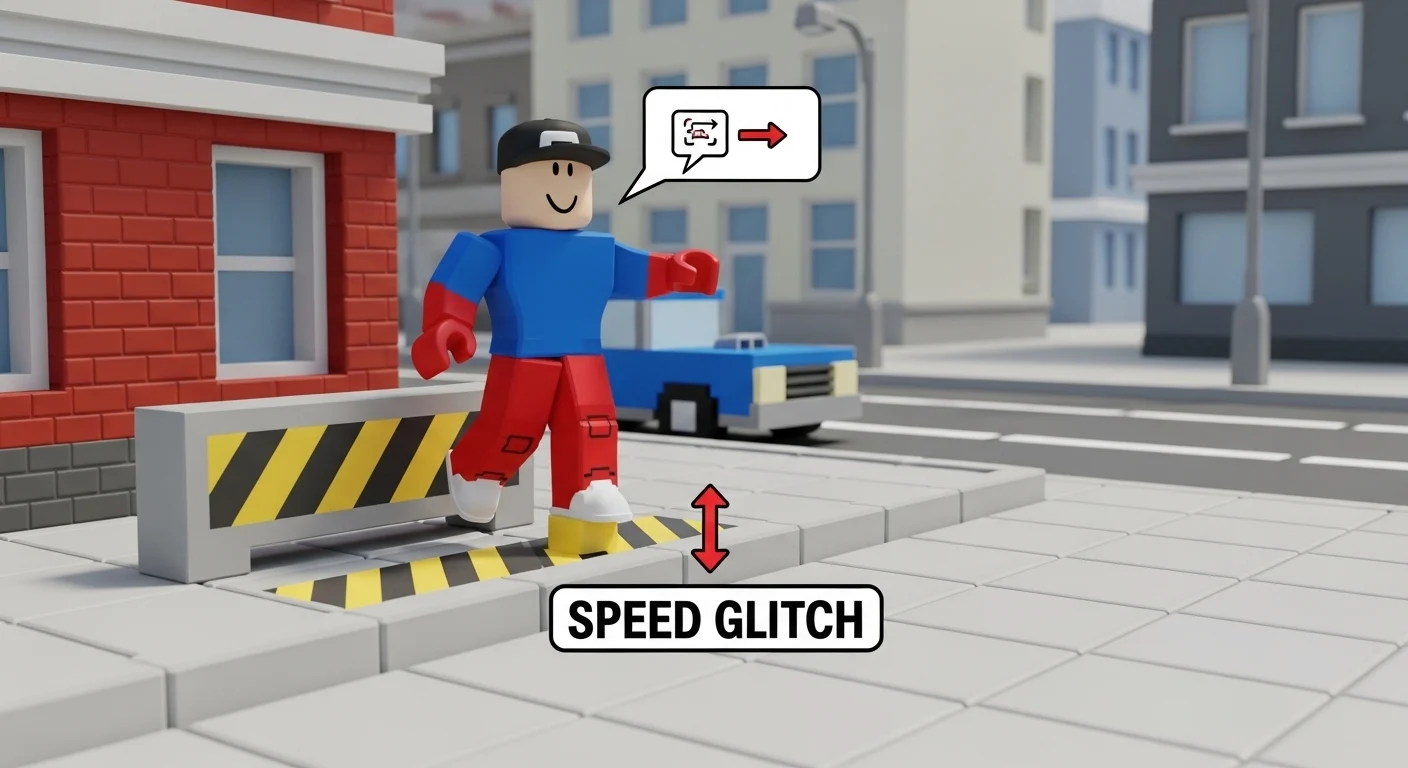

In Da Hood, if you walk at normal speed, you are already dead. You will get stomped, packed, and clipped before you can even pull out your DB (Double Barrel).
To survive in 2026, you need a Macro.
A Macro automates the “Speed Glitch,” allowing you to slide across the map at Mach 10 like a demon. But be careful: Roblox’s anti-cheat (Hyperion/Byfron) is smarter than ever. Using the wrong software gets you banned.
Here is the safest way to set up your macro without losing your account.
⚠️ The Disclaimer (Read This)
Is Macroing bannable?
- On Roblox: Technically, yes, it falls under “Third Party Software.”
- In Da Hood: The developers generally allow it because the entire game relies on it.
- The Risk: If you use sketchy “exe” injectors, you will get HWID banned. ONLY use legitimate mouse software (Logitech/Razer) or trusted utilities like TG Macro. Do not download random “Speed Hacks” from Discord.
🛠️ Step 1: The Software (TG Macro vs. Mouse Software)
Option A: Gaming Mouse Software (Safest)
If you have a Logitech, Razer, or Corsair mouse, use their official software (G Hub, Synapse).
- Why: Roblox sees this as “Hardware Input.” It is almost impossible to detect.
- How: Create a macro that rapidly repeats the “Scroll Up” and “Scroll Down” inputs (or I and O keys) with 0ms delay.
Option B: TG Macro (The Standard)
If you have a generic office mouse, download TG Macro (The Gamer Macro). It is the most widely used tool in the community.
- Google Search: “TG Macro Official”.
- Setup:
- Click “Add New Macro”.
- Event Type: Keyboard Key.
- Key 1: Press
I(Zoom In). - Key 2: Press
O(Zoom Out). - Action: Select “Press” and “Release” for both.
- Delay: Set to roughly 0.01ms or as low as it goes.
- Bind Key: Set it to a side mouse button (Mouse4 or Mouse5) or
Q. - Loop: Set to “Repeat while holding.”
🕺 Step 2: The In-Game Setup (Animation Pack)
You cannot macro with the default Roblox walk. You need the Animation Pack.
- Cost: 100 Robux (Gamepass) or available via the “Animation” emote menu if you have the idle animation.
- The Emote: You need the “Greet” emote.
🏃 Step 3: How to Execute the Glitch
Now for the muscle memory. Go to a safe spot (like inside the Bank or Gym) to practice.
- The “Greet”: Click “Greet” in your animation menu.
- The Timing: As soon as your hand touches your head (about 0.5 seconds into the animation), pull out an item (Wallet, Gun, or Food).
- Result: Your character should look “frozen” in the Greet pose while holding the item.
- The Crouch: Press
Cto crouch (optional, but makes you faster/smaller). - The Trigger: Hold your Macro Key.
- The Movement: Walk backwards (
S) while moving your mouse slightly.- Physics: Your camera will vibrate violently. This is good. The vibration propels you backward at super speed.
🖥️ Step 4: Optimization (FPS is Speed)
In Roblox physics, Higher FPS = Faster Macro. If you play on 60 FPS, you will be slow. If you play on 200 FPS, you will fly.
- Unlock FPS: Use Bloxstrap or an FPS Unlocker to bypass the 60 cap.
- Lower Graphics: In Roblox settings, set Graphics Quality to 1 or 2.
- Why: This removes shadows and textures, giving you max FPS.
- Low GFX Mode: In Da Hood settings, turn on “Low GFX” to remove grass and debris.
🛑 Troubleshooting: “Why am I flinging?”
If you launch into the sky instead of sliding:
- Your FPS is TOO high: If you have 500+ FPS, the physics break. Cap it at roughly 144 – 240 FPS.
- Your Macro Delay is too fast: If TG Macro is set to absolute 0ms, it might glitch. Try adding a tiny delay (1ms).
- You aren’t holding an item: You must be holding the Wallet or Gun. If you are empty-handed, it won’t work.
💡 Pro Tip
Control is better than Speed. Don’t be that guy who macros into a wall and gets stuck. Practice “tapping” the macro key instead of holding it down. Short bursts allow you to turn corners and dodge bullets without losing control. A controlled slide beats a chaotic fling every time.